
📊 Viewing and understanding Reports
Este conteúdo não está disponível em sua língua ainda.

🔍 Accessing your Report
Section titled “🔍 Accessing your Report”Once a profile has been verified by Emptor’s robust system, a detailed PDF report will be made available on your dashboard.
- Login to your Emptor dashboard 👩🏻💻
- Go to the Profiles section 👥
- Click on the desired profile. The report will be automatically displayed on your screen 🖥️
- To download the report, simply click on the PDF icon 📰
📑 What’s inside the Report?
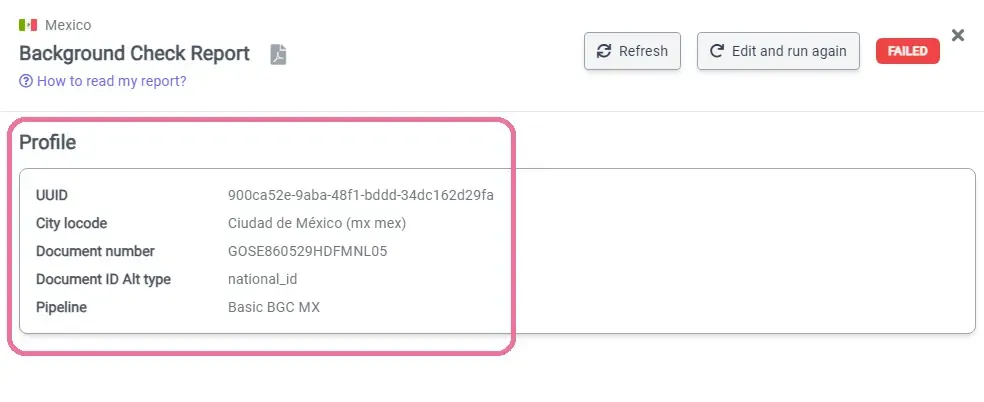
Section titled “📑 What’s inside the Report?”👤 Profile Information
Section titled “👤 Profile Information”A concise overview of the verified profile.
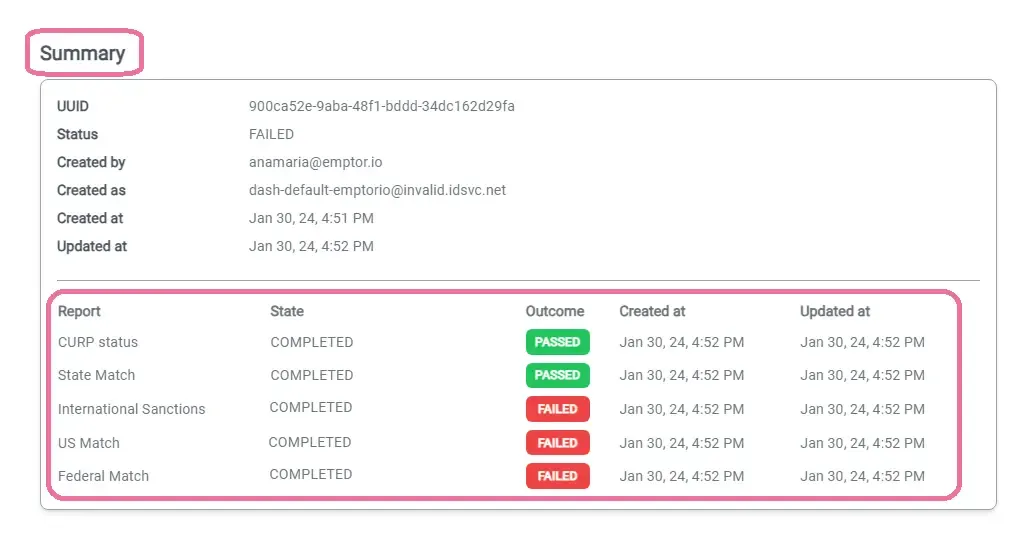
📊 Summary of outcomes
Section titled “📊 Summary of outcomes”At a glance, see the outcomes for each report—whether they’ve passed, failed, or are incomplete.
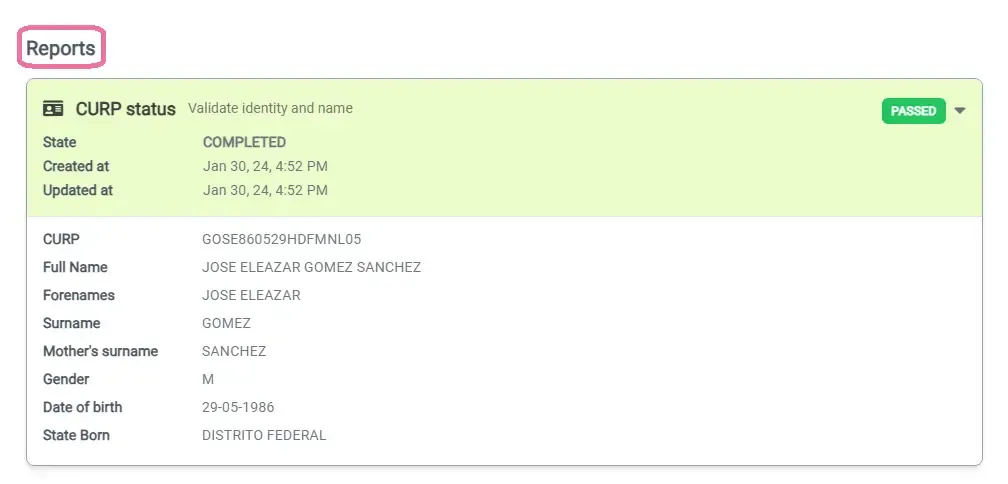
📋 Detailed Report list
Section titled “📋 Detailed Report list”Delve deeper into each report. This list details every record found during the verification process, providing you with the insights you need.
🚦 Understanding the different outcomes
Section titled “🚦 Understanding the different outcomes”| Outcome | Description |
|---|---|
| 🔵 PENDING | Your profile is in the queue, awaiting initial processing. |
| 🟠 PENDING MANUAL REVIEW | The profile’s data requires hands-on verification by our expert team. |
| 🟢 PASSED | Great news! The profile has successfully met all verification criteria. |
| 🔴 FAILED | Heads up! We’ve detected discrepancies or issues during the profile’s verification. |
| 🟡 INCOMPLETE | Almost there! We need a bit more information or further review to finalize the verification. |
| ℹ️ INFO ONLY | It gives you all the details you’re looking for, but without applying our usual background check rules to decide if it’s a ‘PASS’ or ‘FAIL’. Perfect for when you just want the information and prefer to make your own assessment. |